🔐 Account Access & Profile Management
Learn how to securely access and manage your RxKonet account, update profile details, and log out safely.
🔑 Logging In
Accessing Your Account
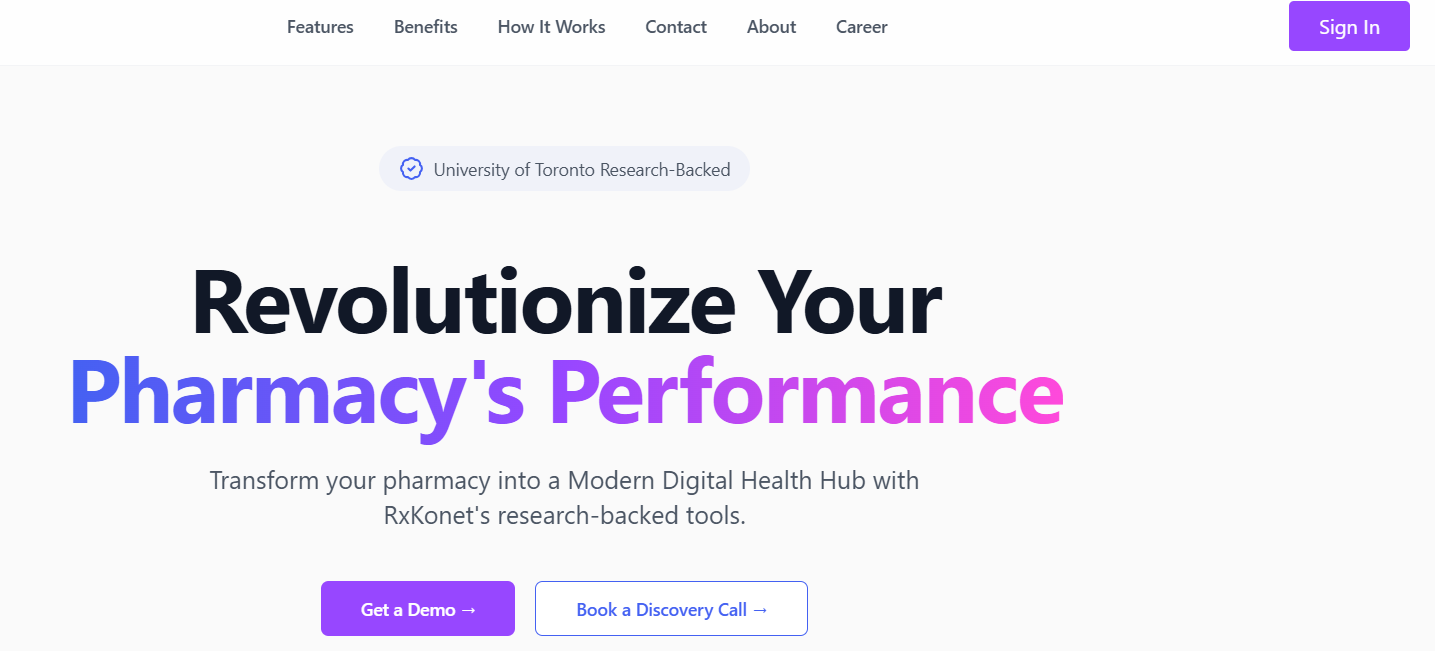
1️⃣ Go to the RxKonet Login Page
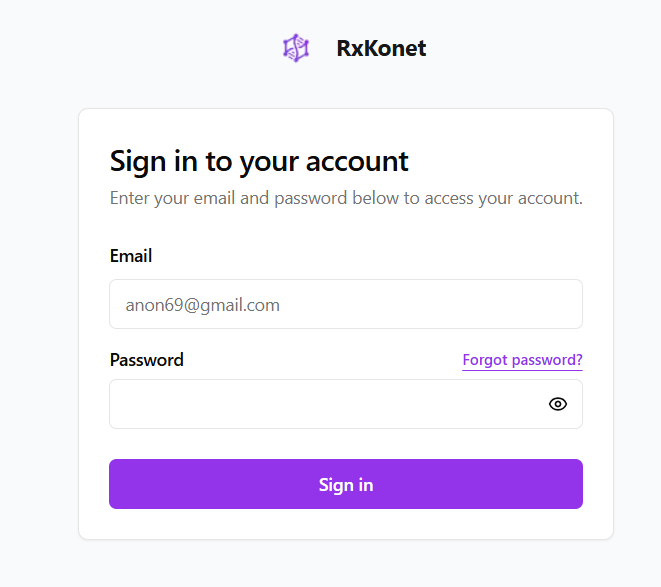
2️⃣ Enter Your Credentials
- Email Address
- Password
3️⃣ Complete Two-Factor Authentication (if enabled).
4️⃣ Click "Sign In" to access your account.
Enable "Remember Me" on personal devices for a faster login experience.
🔑 Password Recovery
If you can't log in:
1️⃣ Click "Forgot Password".
2️⃣ Enter your registered email address.
3️⃣ Follow the password reset instructions sent to your email.
👤 Profile Management
✏️ Editing Your Profile
Your profile allows you to update personal information and ensure account details remain accurate.
🔍 Accessing Your Profile
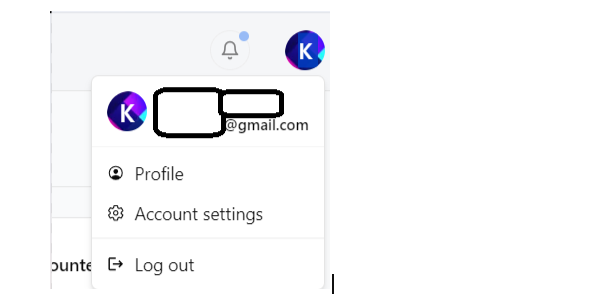
1️⃣ After logging in, click your name or profile picture in the top-right corner of the dashboard.
2️⃣ Select "Profile."
🔄 Updating Your Details
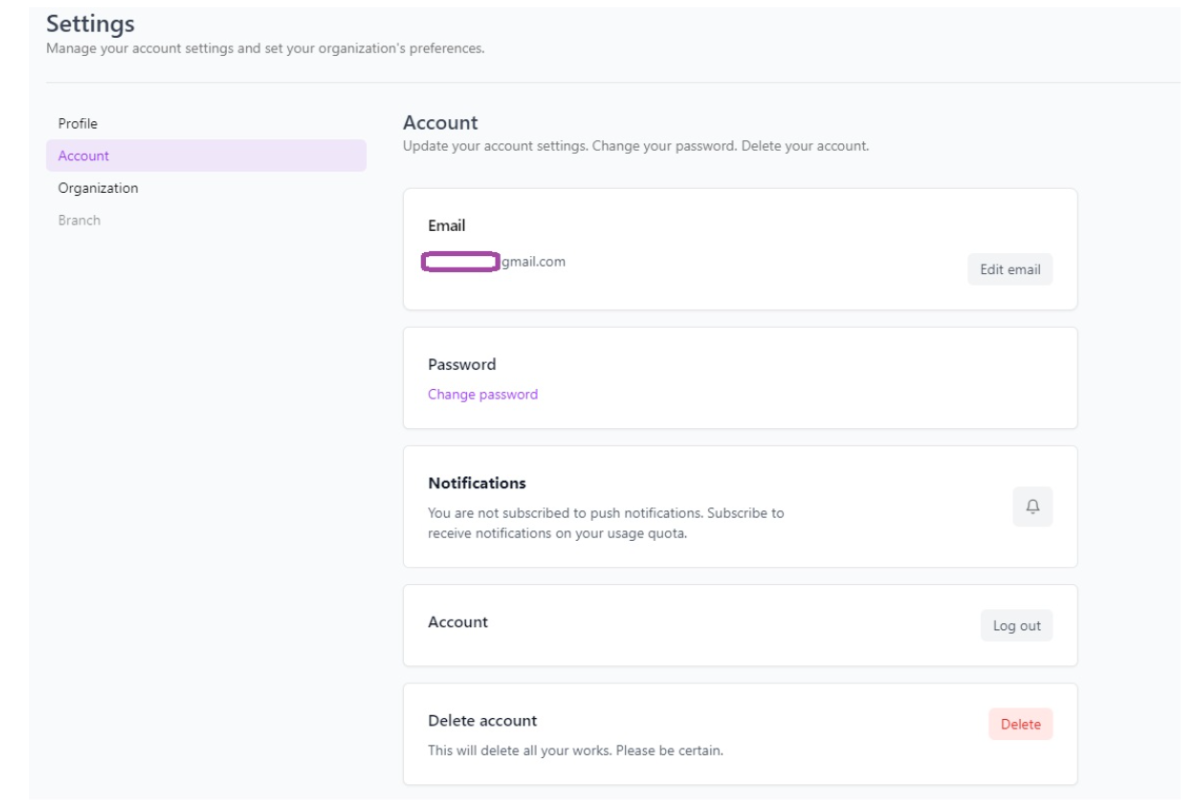
1️⃣ Click on "Account."
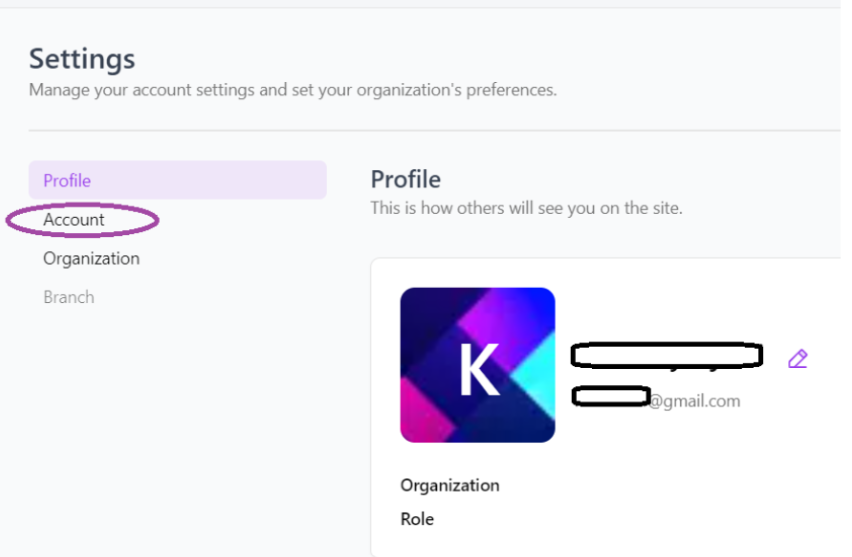
2️⃣ Modify your email address or password.
- Use the "Change Password" option to update your login password.
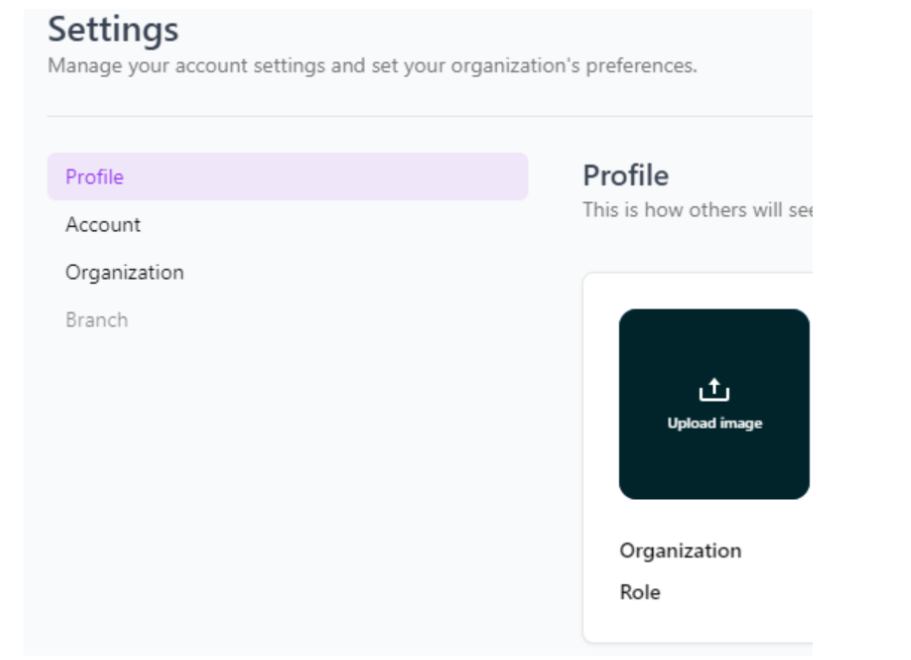
3️⃣ Upload or change your profile picture.
💾 Saving Changes
✅ Click "Save" to apply updates.
Certain fields, such as roles and permissions, may only be editable by an administrator.
🚪 Logging Out
Logging out ensures your RxKonet account remains secure, especially when using shared or public devices.
🔐 Secure Logout Process
1️⃣ Click your name or profile picture in the top-right corner.
2️⃣ Select "Log Out."
3️⃣ You will be securely logged out and redirected to the login page.
Always log out when stepping away from shared devices to prevent unauthorized access.